
The website inbox was the end of the workflow
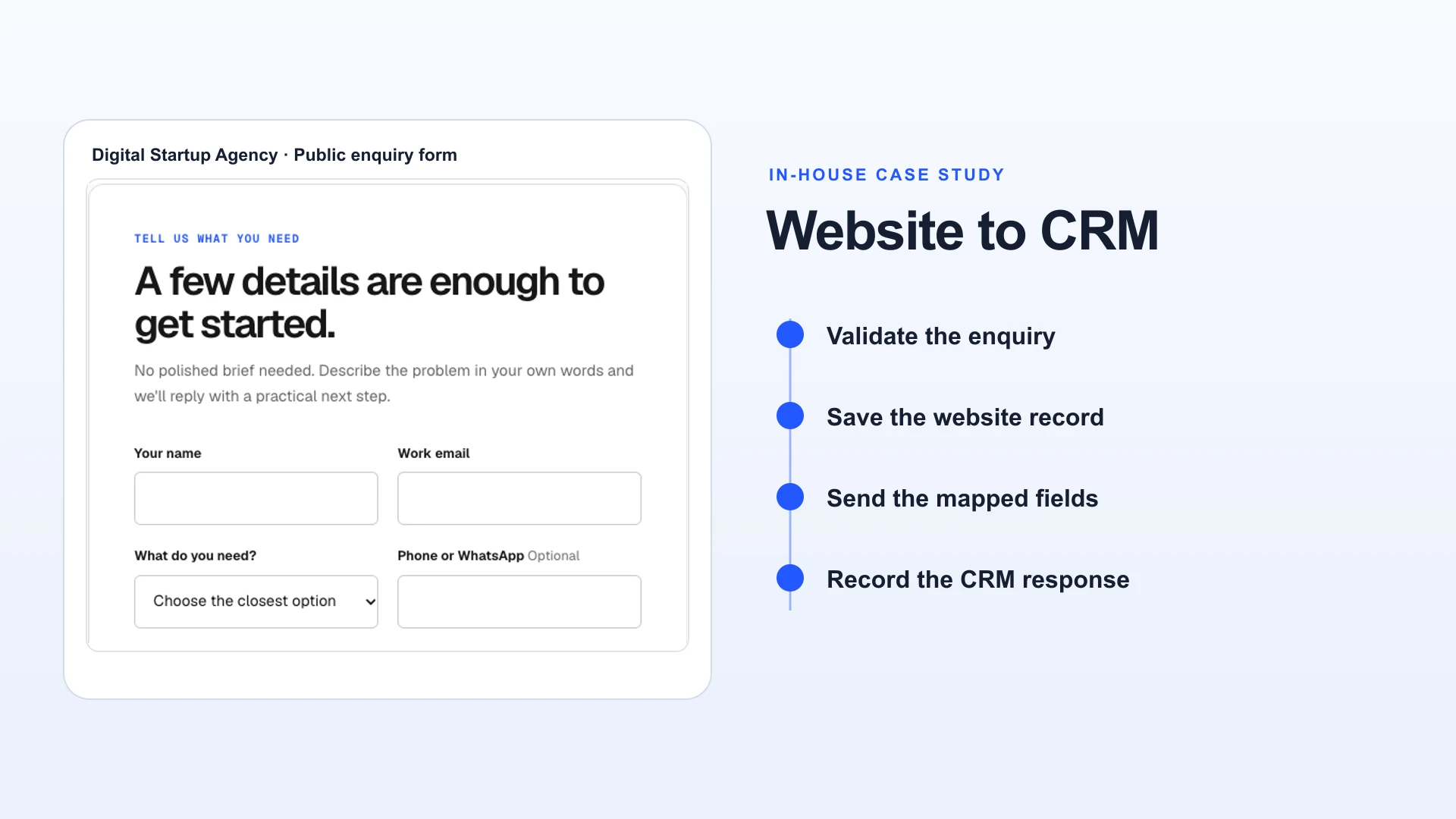
This is Digital Startup Agency’s own lead-management project. Our earlier enquiry handler validated the form and saved the submission to the website’s database. That gave us an inbox for website enquiries. We added a second step so that a configured CRM could receive those enquiries with an owner and enough context to follow up.
The change kept the website record as the first point of capture. That record has a reference the team can use to match the enquiry to the CRM entry and investigate a failed transfer.
Save the enquiry before sending it to the CRM
The Cloudflare Worker validates the submission and saves it in D1, a SQLite-based database. It then sends an authenticated request to the CRM API. The request carries the configured lead source, status and staff assignee, along with the enquiry description and any populated custom fields that have a mapping.
The application checks for both a successful HTTP response and an explicit acceptance from the CRM. It records the result on the website record and saves the CRM’s lead ID when the response includes one. The private inbox displays the transfer status for staff reviewing the enquiry.
01Validate
Check the enquiry form fields before accepting the submission.
02Save
Store the original enquiry in the website database.
03Map
Use the website record to create a reference and populate the configured CRM fields.
04Send
Attempt to create the lead through the CRM API when delivery is configured.
05Record
Store the sync status and the CRM lead ID when one is returned.
| Website information | CRM mapping |
|---|---|
| Name, email and optional phone | Lead contact fields |
| Enquiry reference and project brief | Lead description, with a separate reference field when configured |
| Project type, timeline and source page | Custom fields when mapped and populated |
| Source, initial status and staff assignee | Values set by the integration configuration |
What the integration check confirmed
We ran the application’s enquiry handler with synthetic submissions, an in-memory SQLite database using the project migrations, and a simulated CRM endpoint. We checked that the local enquiry existed when the CRM request arrived and that the request contained the expected reference, assignment and custom field values.
All three valid submissions returned a website confirmation because each was saved locally. The CRM delivery results differed. Staff can use the status and the original enquiry to decide what follow-up is needed. These checks measure the application’s behaviour under controlled inputs.
| Test scenario | Observed result |
|---|---|
| CRM accepted the mapped request | The enquiry was marked as synced and the returned CRM lead ID was saved. |
| CRM rejected the request | The local enquiry remained available, with a failed status and the rejection reason. |
| CRM configuration was incomplete | The local enquiry remained available with a setup-required status. No transfer was attempted. |
What to check in a UK service-business pilot
Start with one form and one team. Write down which system holds the enquiry, which staff member or queue receives it, and which fields that person needs for the first follow-up. Confirm the mapping with a synthetic submission before expanding to another form or intake channel.
Ask for evidence of both paths at handover. Check that an accepted enquiry lands with the right owner and that a rejected transfer stays visible somewhere a staff member checks. The ICO’s guidance for small organisations uses contact forms as an example of where to limit collection to the details needed to handle the enquiry.
Scope historical records separately. A form integration handles new enquiries. Moving spreadsheet history adds record matching, ownership checks and reconciliation, each with its own acceptance criteria.
Frequently Asked Questions
Common Questions & Engineering Trade-offs
How do you connect a website form to a CRM?
Use the CRM’s own form, a suitable connector or a direct integration. We used a direct API integration so our website could save the enquiry first, map its fields and show staff the delivery result.
Can a website enquiry automatically have a CRM owner?
Yes. Our integration sends the configured staff assignee when it creates the CRM lead. A useful pilot check is to confirm that the test lead appears under the intended owner in the CRM.
What happens if an enquiry does not reach the CRM?
Our website saves the enquiry before attempting delivery. If the CRM rejects it, the original remains in the private inbox with a failed delivery status. Staff can use the recorded reason when reviewing what happened.
Scope your website-to-CRM handoff
Bring one form, one CRM and the next action your team needs to take after an enquiry arrives.